Add Row
Add Element
cropper
update

Your Trusted Source For ISP News & Reviews

update
Add Element
  • Home
  • Categories
    • Internet 101
    • News & Updates
    • Tips & Troubleshooting
    • Smart Homes
    • Small Biz & Remote Work
    • Gaming
    • Entertainment
    • Featured
    • ISP Investment News
July 27.2025
2 Minutes Read

Unlock Global Streaming: How to Set Up a VPN on Your Smart TV

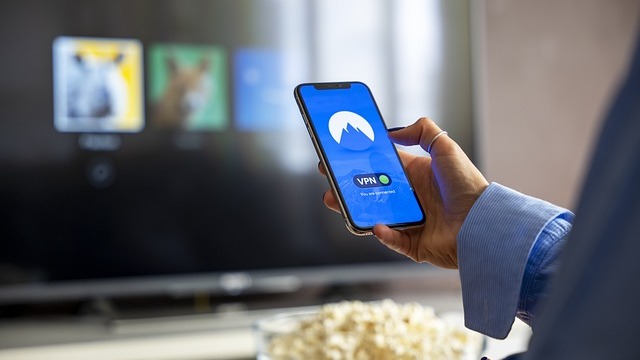
Minimalist setup showing how to set up a VPN on your Smart TV.


Unleashing the Power of Smart TVs

In our increasingly connected world, many of us rely on smart TVs for entertainment. These devices broaden our viewing options, but they also expose us to potential privacy and security risks. Enter Virtual Private Networks (VPNs), which allow you to safeguard your data while enjoying a seamless streaming experience. Setting up a VPN on your smart TV can seem daunting, but it's easier than you might think.

Why You Should Consider Using a VPN

Streaming movies and shows from various platforms is certainly entertaining, but doing so without a VPN can compromise your personal data. A VPN encrypts your internet connection, making it much more difficult for hackers or data snoopers to access your information. Moreover, using a VPN allows you to bypass geographic restrictions and access content that might otherwise be unavailable in your region, opening up a new world of programming possibilities.

How to Set Up a VPN on Your Smart TV

While the method of setting up a VPN may vary depending on the smart TV brand you own, there are several common ways to get the job done. Here's a quick rundown:

  • Option 1: Install the VPN App Directly - If your smart TV supports downloading apps, this is the simplest method. Just highlight the app store on your TV, search for your VPN provider’s app, download it, and follow the instructions to log in.

  • Option 2: Use a VPN-Enabled Router - If your smart TV doesn’t support direct installation, this method can cover all devices on your home network. All you need to do is configure your router with the VPN’s details, which may be a slightly more advanced setup.

  • Option 3: Share a VPN Connection from Your PC - You can also connect your smart TV to your computer, which is running the VPN. This option requires a bit more technical knowledge but can be useful if other methods are challenging.

Making Streaming Fun and Secure

Now that you have a VPN up and running, it enhances not only your privacy but also your streaming experience. You can access international shows, enjoy faster connection speeds when you select a nearby server, and make sure that your viewing habits remain personal. Plus, the setup process can often be completed in less than an hour!

Conclusion: Take Control of Your Streaming Experience

In a world where online privacy is increasingly important, using a VPN on your smart TV is a smart move. Not only does it protect your data, but it enhances your access to global content libraries. So grab a snack, get comfortable, and enjoy exploring new shows and movies with your newly secured smart TV!


Entertainment

0 Comments

Write A Comment

*
*
Related Posts All Posts
02.21.2026

Why Your Smart TV's Ethernet Port May Not Be Your Best Internet Choice

Update Understanding Your TV’s Ethernet Port: The Truth Behind Connectivity When you take a look at your smart TV, you may see several ports awaiting use, and among them, the Ethernet port often lies in obscurity. For many users, this port appears to be a gateway for a stronger internet connection, but that assumption is often misleading. The reality is that, for most modern smart TVs, connecting via Wi-Fi can deliver superior speeds compared to the Ethernet port. Let’s dive deeper into this topic! Unveiling the Ethernet Limitations The majority of smart TVs feature Ethernet ports that are restricted to speeds of around 100 Mbps, more commonly referred to as 10/100 Ethernet. This may seem adequate for streaming content, but in the age of superior Wi-Fi standards, such limitations render the port underwhelming. For instance, Wi-Fi 5, Wi-Fi 6, and the latest Wi-Fi 6E can achieve significantly higher speeds, potentially doubling or tripling what the Ethernet connection provides. Users with devices equipped with Wi-Fi 6E, like the LG C5 model, have reported speeds up to 213 Mbps, surpassing Ethernet capabilities by a notable margin. Why Do Manufacturers Stick with Ethernet? Considering this inconsistency, many wonder: why don’t TV manufacturers incorporate faster Ethernet ports? The answer is primarily cost-efficiency. Streaming services generally recommend a minimum speed of 25 Mbps for smooth 4K streaming, making 100 Mbps seem like an adequate provision for manufacturers to save on costs while marketing to consumers who are less likely to challenge their network choices. Evaluating Your Connection Needs So, should you rely on your TV’s Ethernet port at all? The answer is nuanced. If your Wi-Fi connection struggles to exceed 100 Mbps or if the distance to your router is challenging, wired connections can still serve as a reliable option. However, in situations where Wi-Fi signals are optimized and capable of delivering speed over 100 Mbps consistently, utilizing Wi-Fi becomes the more effective choice. The Case for Wireless Adopting Wi-Fi connectivity does not just offer higher speeds; it also liberates your smart TV from the confinements of a cable. Many households have experienced the pressures of bandwidth congestion, particularly during peak hours when multiple devices compete for internet access. Common frustrations like buffering and delayed loading can often be resolved by unwiring your connection and enabling faster Wi-Fi access, accentuating a more enjoyable streaming experience. How to Test Your Connection If you're uncertain which connection type is best for your smart TV, a simple speed test is available within popular streaming applications like Netflix. By accessing the settings menu and selecting the option to check your network, you can assess your connection speed. If it exceeds 100 Mbps, sticking with Wi-Fi is advisable for optimal performance. Cutting the Cord: Making Better Choices Ultimately, understanding your smart TV's connectivity is crucial to enhancing your viewing experience. Ensure not to cling to outdated notions about wired connections being inherently superior. When it comes to modern smart TVs, efficient and stable Wi-Fi often wins the race against Ethernet ports. However, adopting a wired connection remains a viable option depending on unique network conditions, and a quick evaluation can make all the difference. Conclusion Whether you choose to stick with your device's Ethernet port, or embrace the versatility of Wi-Fi, the most important takeaway is to assess your individual setup and needs. By staying informed and making thoughtful decisions regarding your connectivity, you can enjoy an upgraded smart TV experience.

02.20.2026

Everything You Need for a Seamless 4K Streaming Experience at Home

Update Unlocking the Power of 4K Streaming: What You Need In an era where high-definition content has become the standard, 4K streaming takes the viewing experience to the next level. Offering resolutions of 3840 x 2160 pixels, 4K content provides four times the pixel resolution of full HD, delivering stunning picture quality filled with vivid colors and intricate details. But, to enjoy the full benefits of this advancement, you must have the right setup in place. Here’s a comprehensive guide on what you need to stream 4K at home. Understanding 4K: More Than Just Numbers The technical aspects of 4K can be confusing, especially if you're not tech-savvy. Essentially, 4K (often referred to as Ultra HD or UHD) means your TV can display a bigger and clearer image. Besides, additional factors like the type of content, internet speed, and your hardware setup play crucial roles in the streaming experience. According to recent insights, services like Netflix and Amazon Prime Video now offer a plethora of 4K content, making it easier to find something you enjoy watching, from the latest blockbusters to live sports. You’ll Need the Right Hardware To stream in 4K, investing in the right device is essential. While most new smart TVs support 4K, older models will not suffice. The best choices available in today’s market include the Samsung QN90B Neo QLED and LG OLED. Furthermore, if you don’t have a smart TV, streaming devices such as the Roku Ultra or Amazon Fire TV Stick 4K Max are excellent alternatives. These devices ensure you can access various streaming services without any complexity. High-Speed Internet: The Backbone of 4K Streaming One crucial element often overlooked is the importance of a good internet connection. Streaming in 4K requires substantial bandwidth. A stable connection of at least 25 Mbps for 4K streaming alone is generally the minimum, though you should ideally aim for 50 Mbps to account for other devices and background usage. Upgrading to a modern router that supports Wi-Fi 6 can also improve performance and prepare your network for the demands of 4K streaming. Getting Started: Your 4K Streaming Checklist Before diving into the world of 4K, here's a checklist to ensure you're prepared: A 4K-capable TV or a compatible streaming device. A high-speed internet connection with at least 50 Mbps download speed. The necessary streaming service subscriptions, such as Netflix Premium for 4K content. 4K HDMI cables for a hassle-free connection between devices. Making the Most of Your 4K Experience To maximize the joy of streaming in 4K, consider setting up your viewing area to ensure optimal screen size and comfortable seating. With a 50” screen or larger, the benefits of 4K resolution become most evident. Don't forget to invest in a good sound system to complement your visuals! Investing in a 4K setup not only enhances your viewing experience but also positions you perfectly for future entertainment technology advancements. Whether it’s movie nights with family or binge-watching your favorite shows, 4K streaming is sure to elevate your home entertainment. If you’re ready to take your home streaming setup to the next level, pay attention to these essentials, and enjoy the breathtaking visuals and improved detail of 4K!

02.13.2026

Unlock Cinematic Experiences: Turn Your Car's Infotainment Into a Smart TV with $60 Gadget

Explore how to turn your car's infotainment center into a smart TV with the CarlinKit FireDrive gadget, enhancing streaming and entertainment options on the go.

Terms of Service

Privacy Policy

Core Modal Title

Sorry, no results found

You Might Find These Articles Interesting

T
Please Check Your Email
We Will Be Following Up Shortly
*
*
*